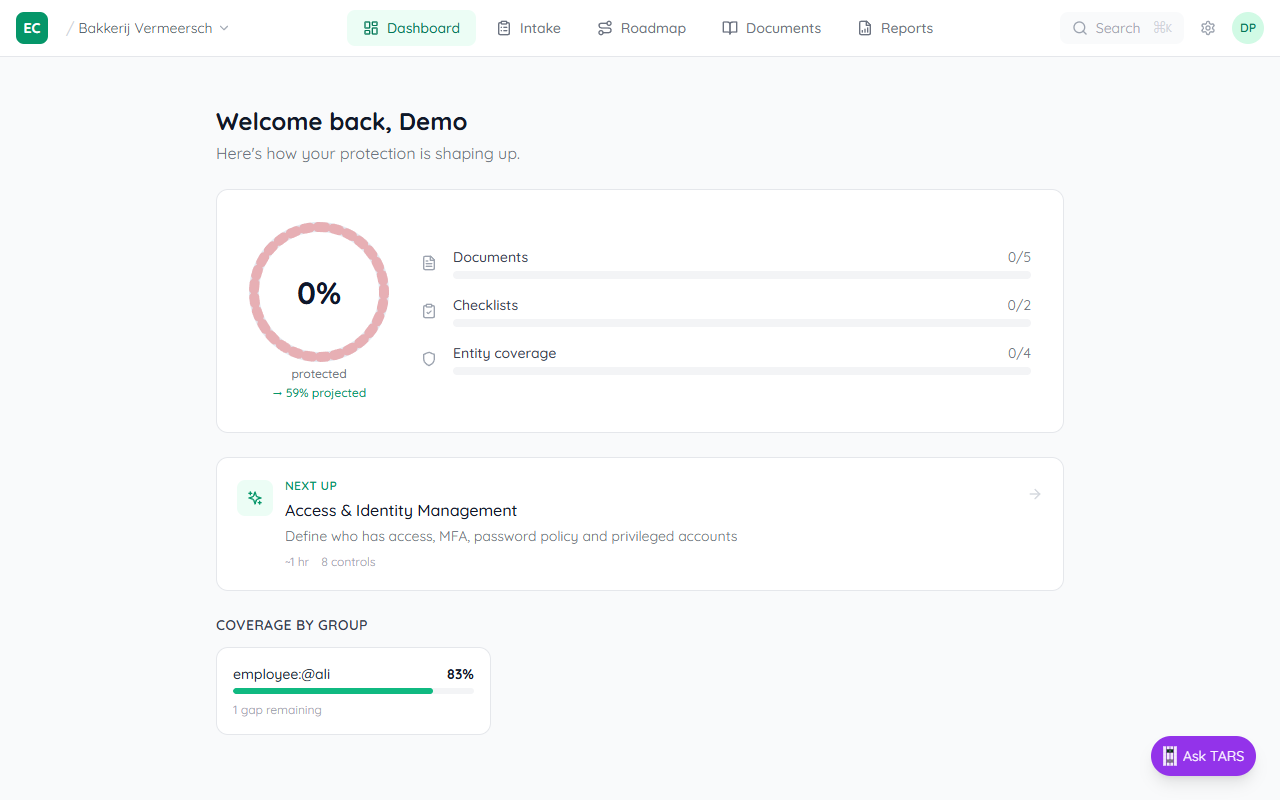
Quick Start: Onboard Your First Client
From login to a fully provisioned client workspace in about 15 minutes.
What you'll do
- Log in to your partner dashboard
- Create a client workspace
- Complete the CyFun assessment to activate the framework
- Connect Microsoft 365 and EDR — assets flow in automatically
- Walk the client through their first controls
Log in as partner
Go to easycyberprotection.com/login and sign in with your partner account. You'll land on the Partner Dashboard showing your client portfolio.
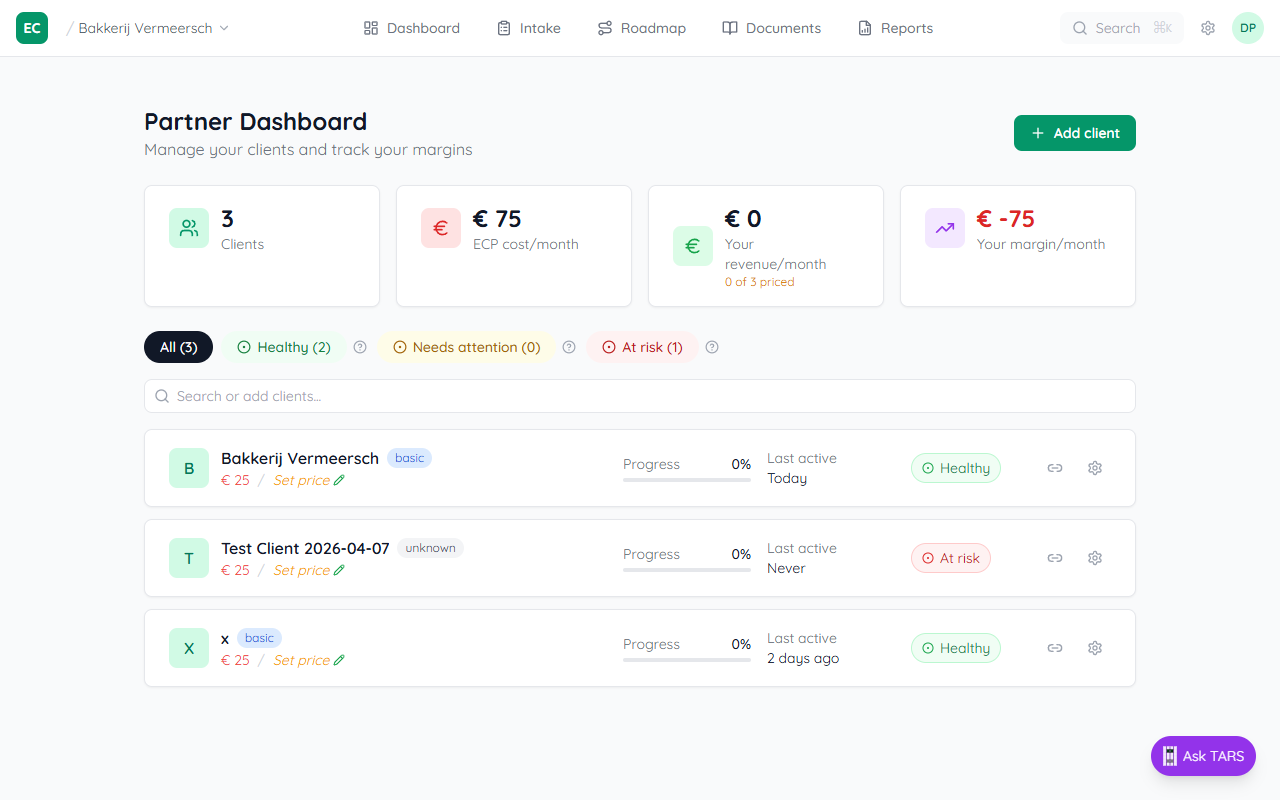
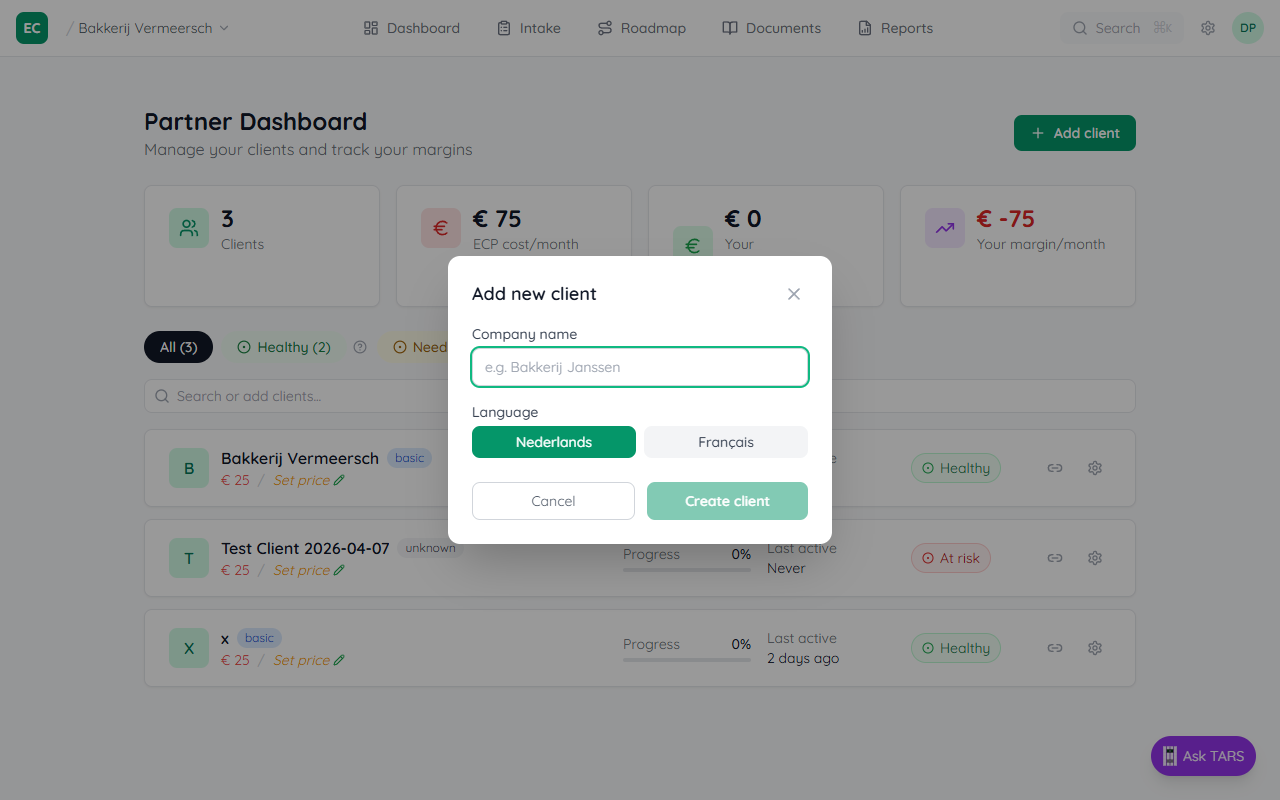
Add a new client
Click Add client in the top-right of the dashboard. Enter the client's company name and preferred language (NL/FR/EN). A workspace is created instantly.
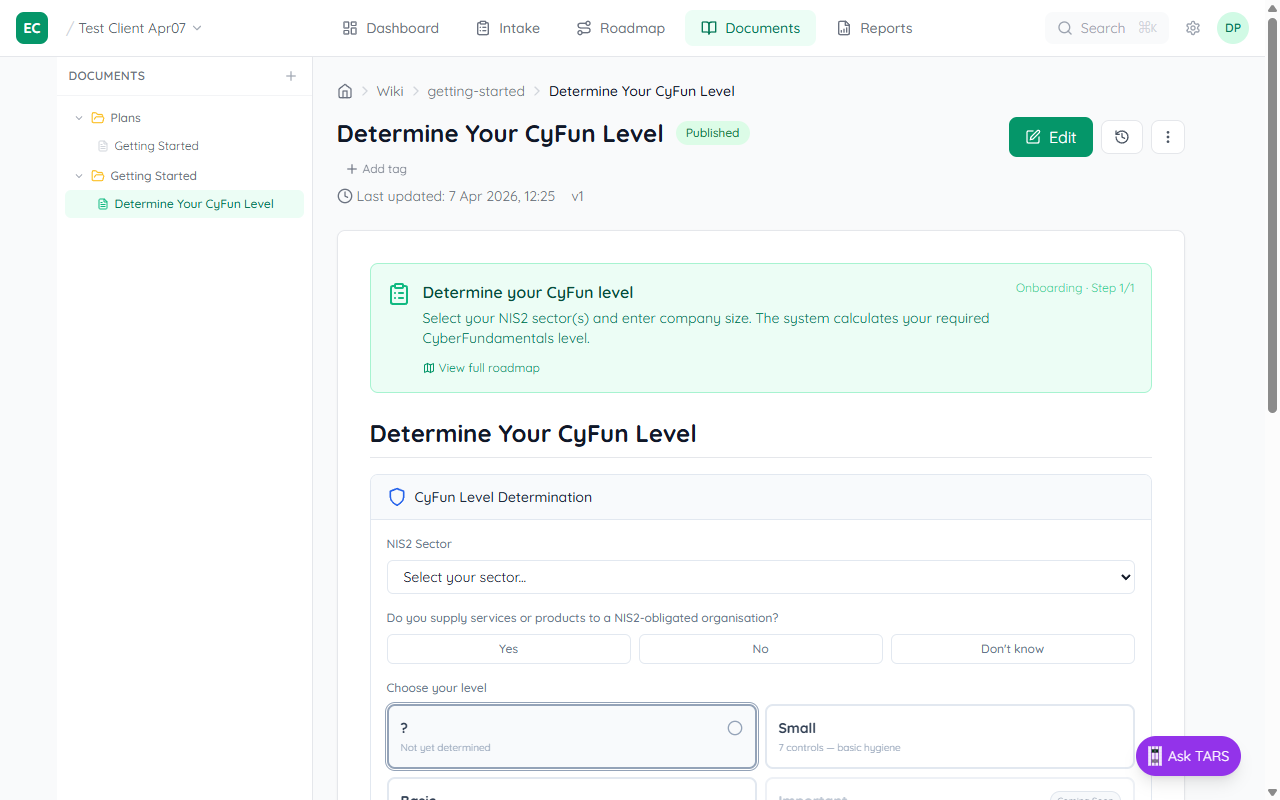
Complete the CyFun Level Assessment
After creating the client, click the Next step card on the dashboard — it takes you straight to Assessments. Open the CyFun Level Assessment, select the client's level (Small or Basic based on their size and sector), then click Apply this level.
Connect your data sources
Go to Intake → Assets. Three cards sit at the top: Microsoft 365, EDR & endpoint protection (Sophos Central or Bitdefender GravityZone), and Declared estate.
Connect M365 first — Intune and Entra ID stream devices, users, and apps into the asset register automatically and pre-answer a chunk of the assessment. Then connect the client's EDR so endpoint-protection evidence flows into the punch list. One sync covers CyFun Basic, Important, and Essential.
Finally fill in the Declared estate card with the real counts (devices, employees, suppliers, etc.). The punch list compares these against what the integrations see — if M365 only finds 12 devices and you declared 83, that's a population gap the auditor will flag.
Your audit punch list is ready
Back on the Dashboard, the client now sees their score ring and a Next up card showing the highest-priority action. The top navigation shows five tabs: Dashboard, Intake, Audit punch list, Documents, and Reports. The Audit punch list buckets every finding into Will fail, At risk, and Ready — exactly how a CAB auditor would read them. Each finding comes with a prescriptive action button (Upload evidence, Fix artifact type, Confirm scope, Refresh evidence, Reconcile integration) that takes you straight to the linked document.