Completing Policy Documents
Each control finding on the Audit punch list links to a pre-built document with guided fields. Fill in those fields — or attach evidence directly — and the finding resolves automatically.
TL;DR
Go to Audit punch list, expand a finding, click Upload evidence (or Fix artifact type / Refresh evidence depending on the failure mode), fill in the document fields or attach the right artifact, and click Save. The finding resolves automatically.
Step 1 — Pick a finding from the Audit punch list
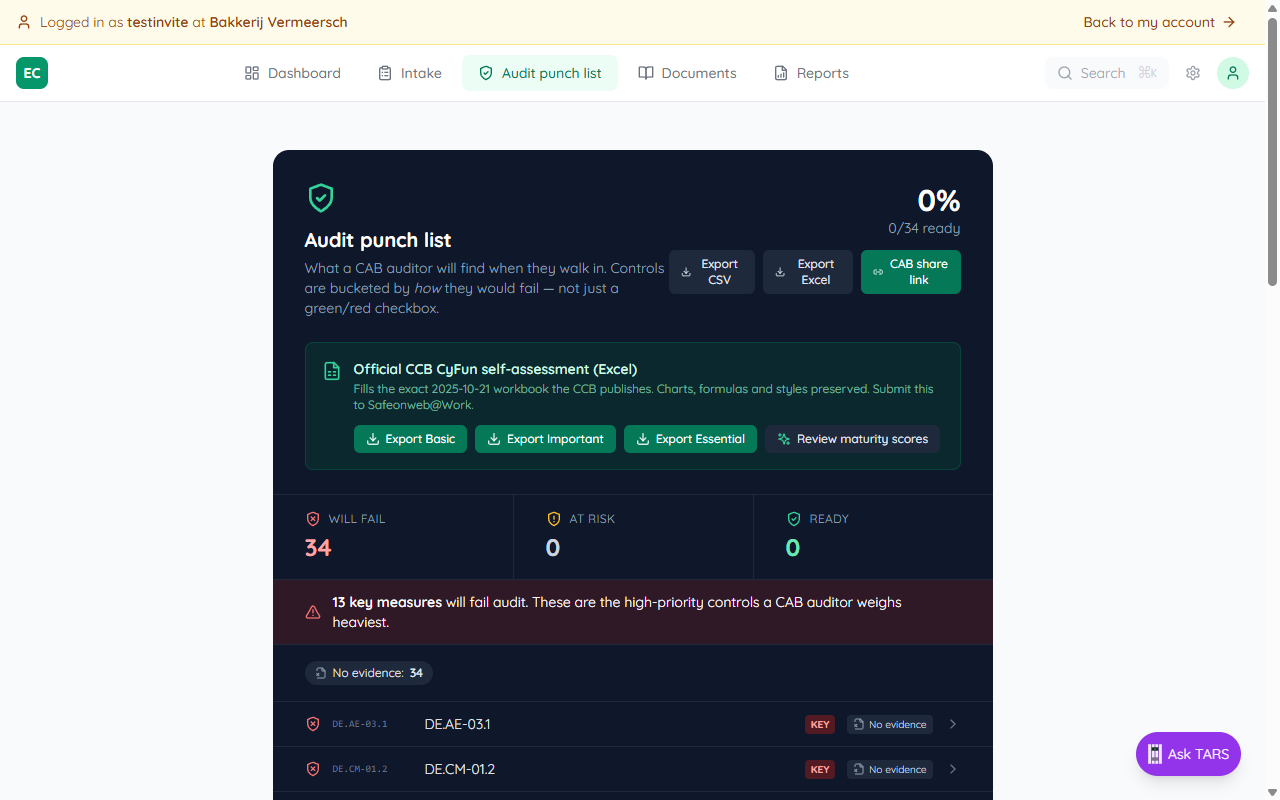
The Audit punch list tab shows every control bucketed by how it would fail an audit. Start at the top of the Will fail bucket — those are the controls a CAB auditor will write up as non-conformities. Controls tagged KEY carry the most weight.
Step 2 — Open the linked document
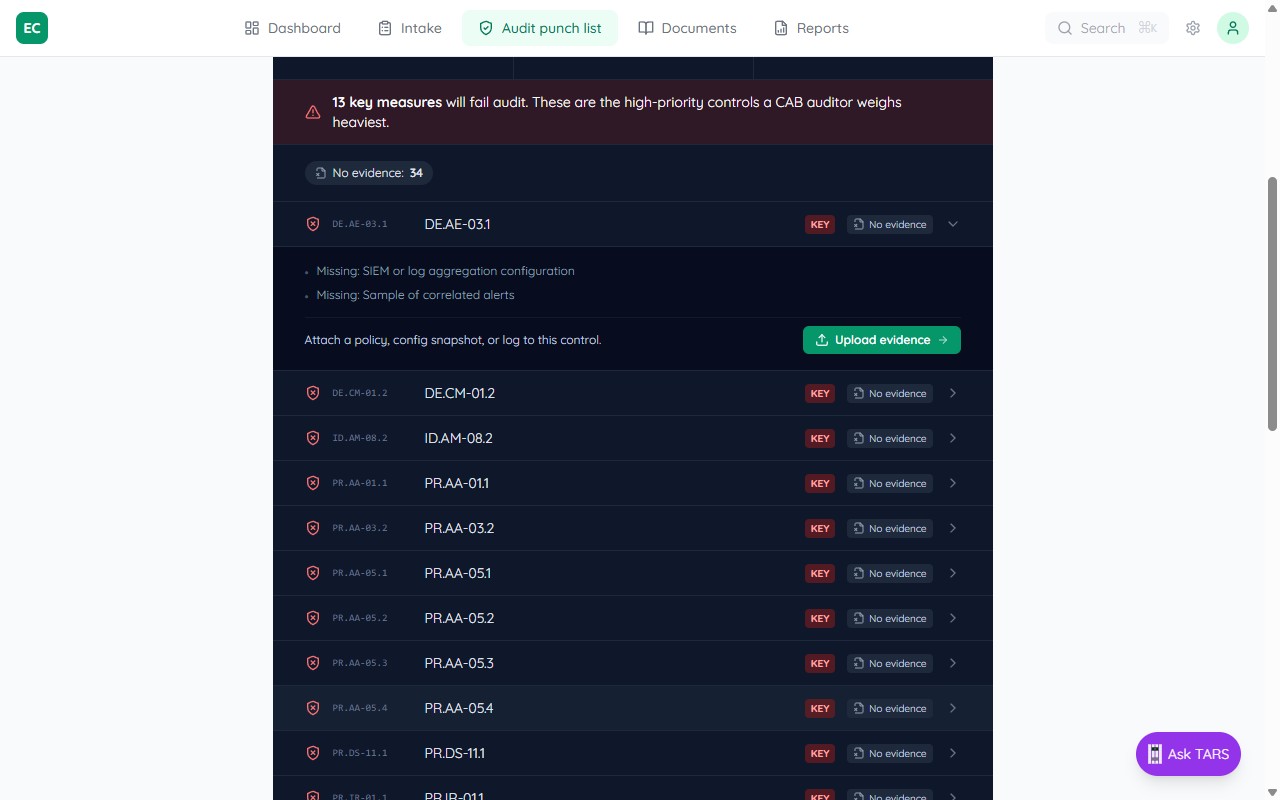
Click a finding to expand it. You'll see the list of missing evidence and a prescriptive action button (e.g. Upload evidence). Clicking the button takes you straight to the control's document with the evidence section pre-focused.
Step 3 — Fill in the guided fields
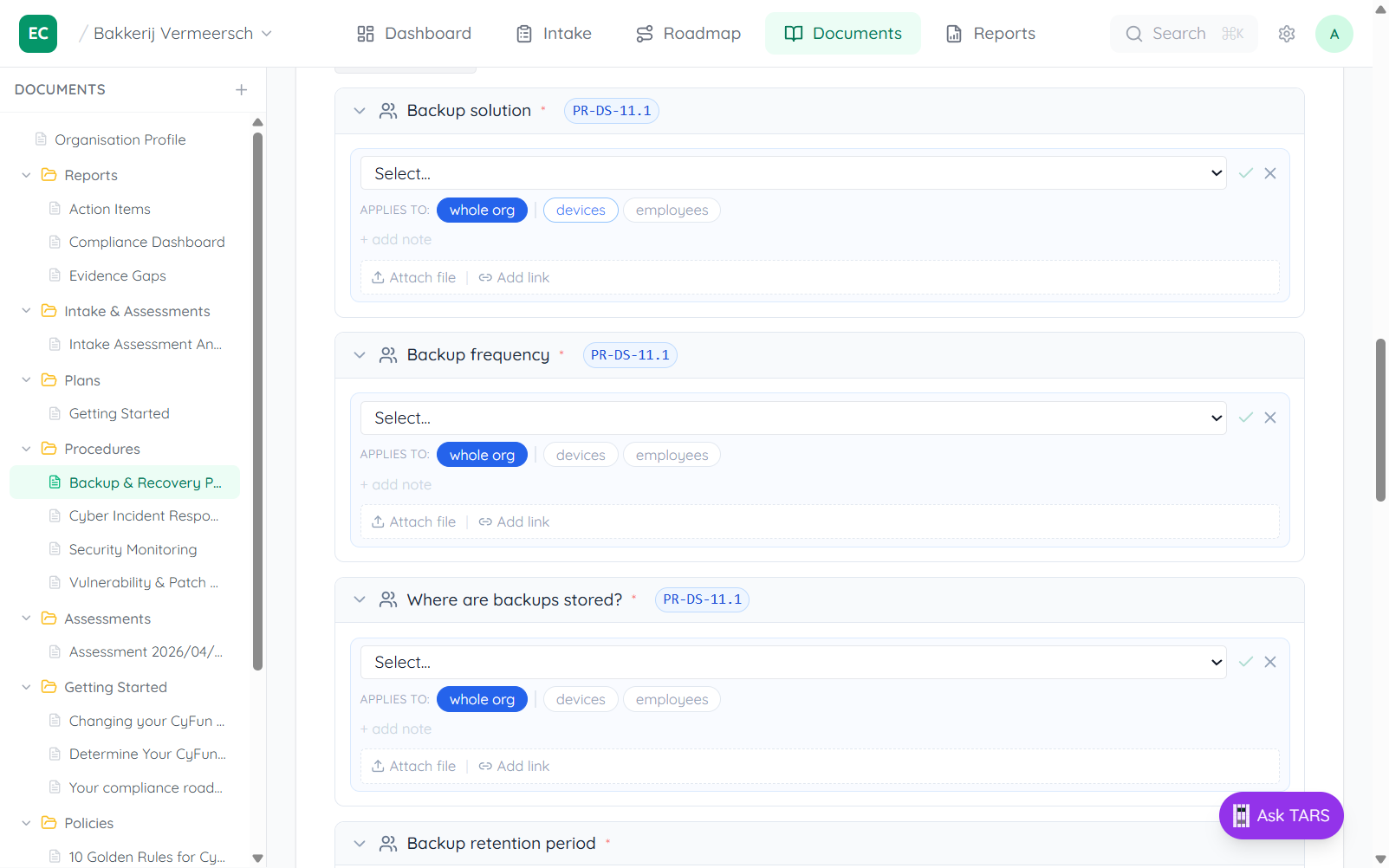
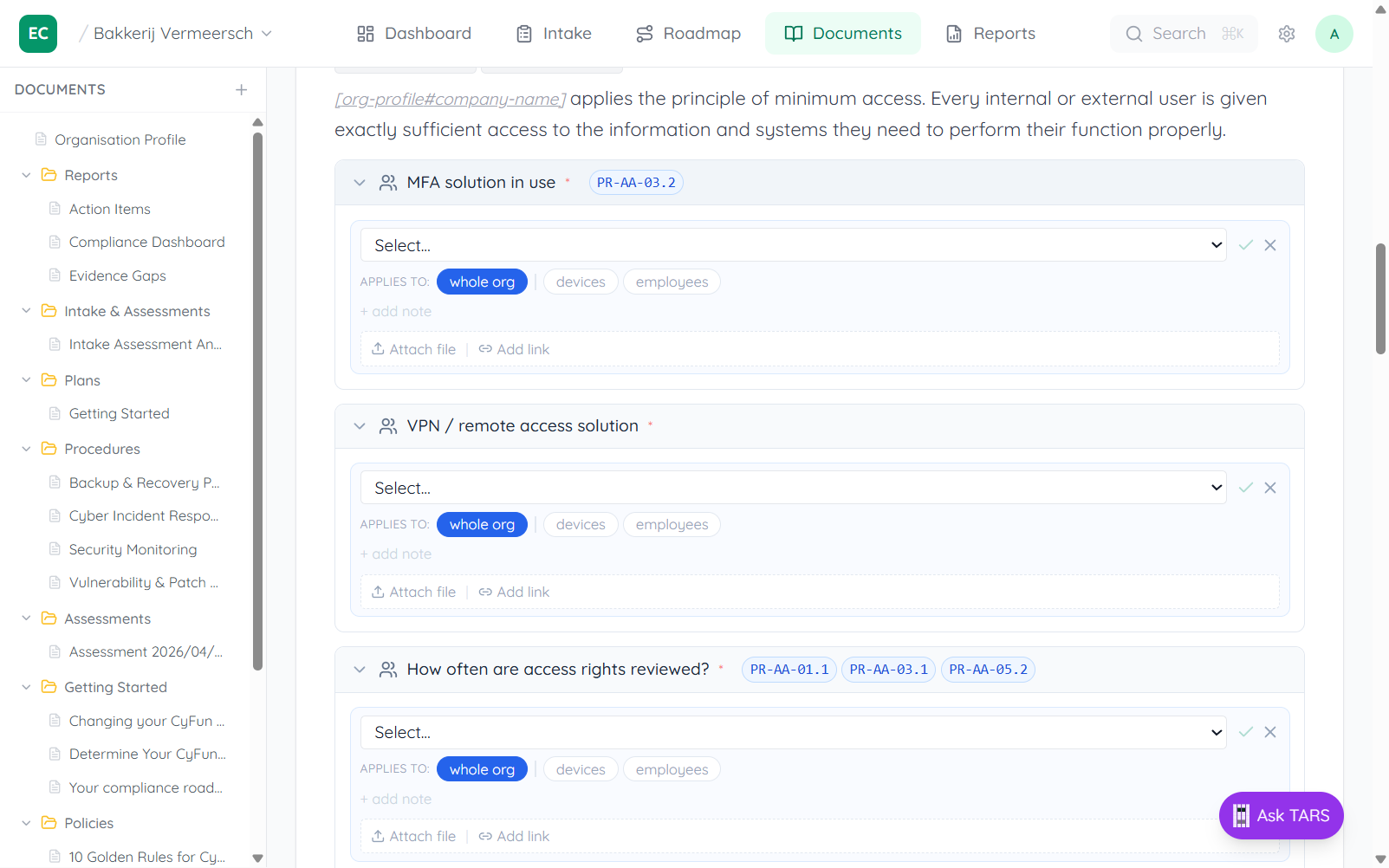
The document opens in view mode with all its guided fields ready to fill. Each field shows its label, which control it satisfies (as a badge), and scope buttons to specify whether it applies to the whole organisation or a specific group.
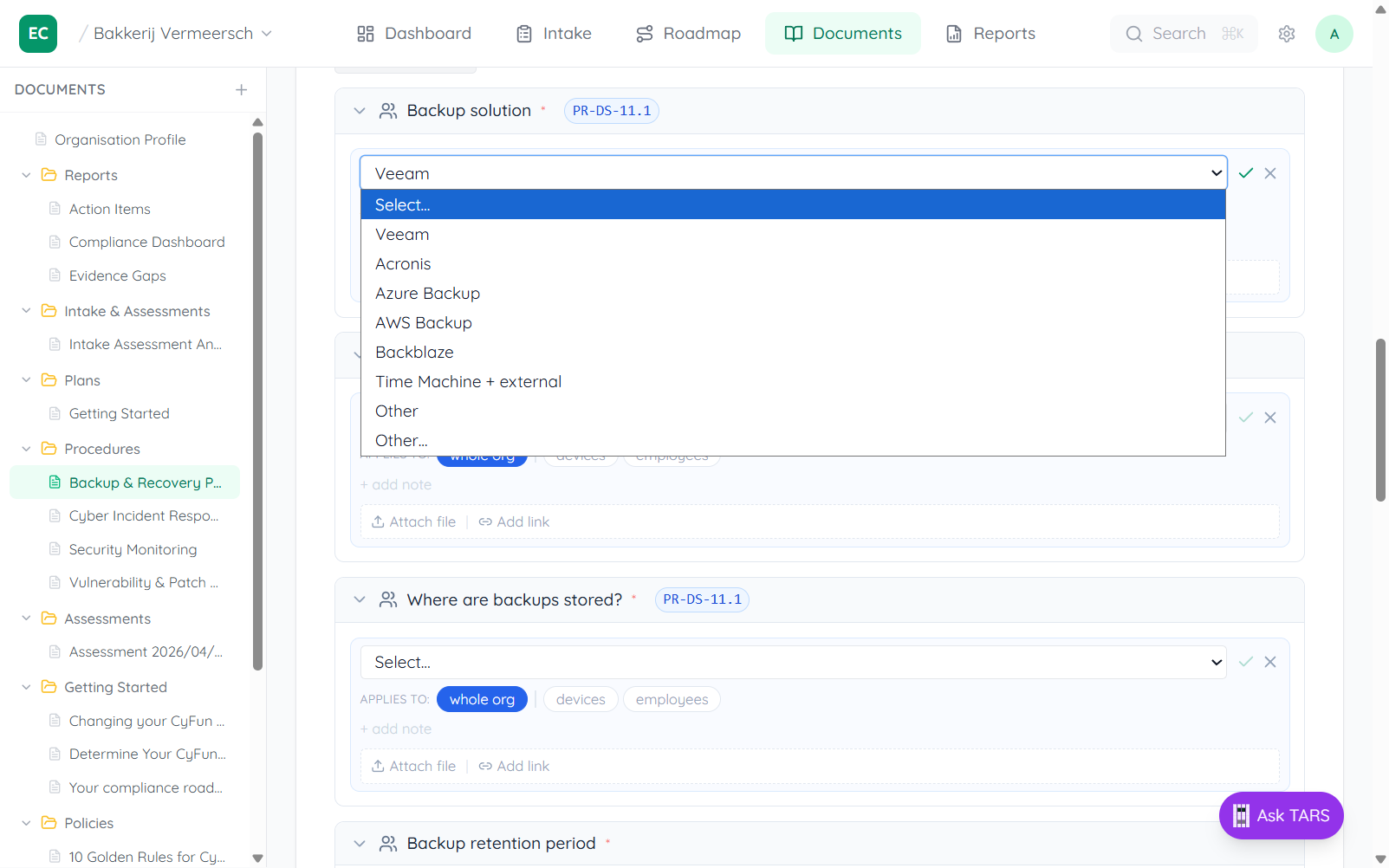
Select fields
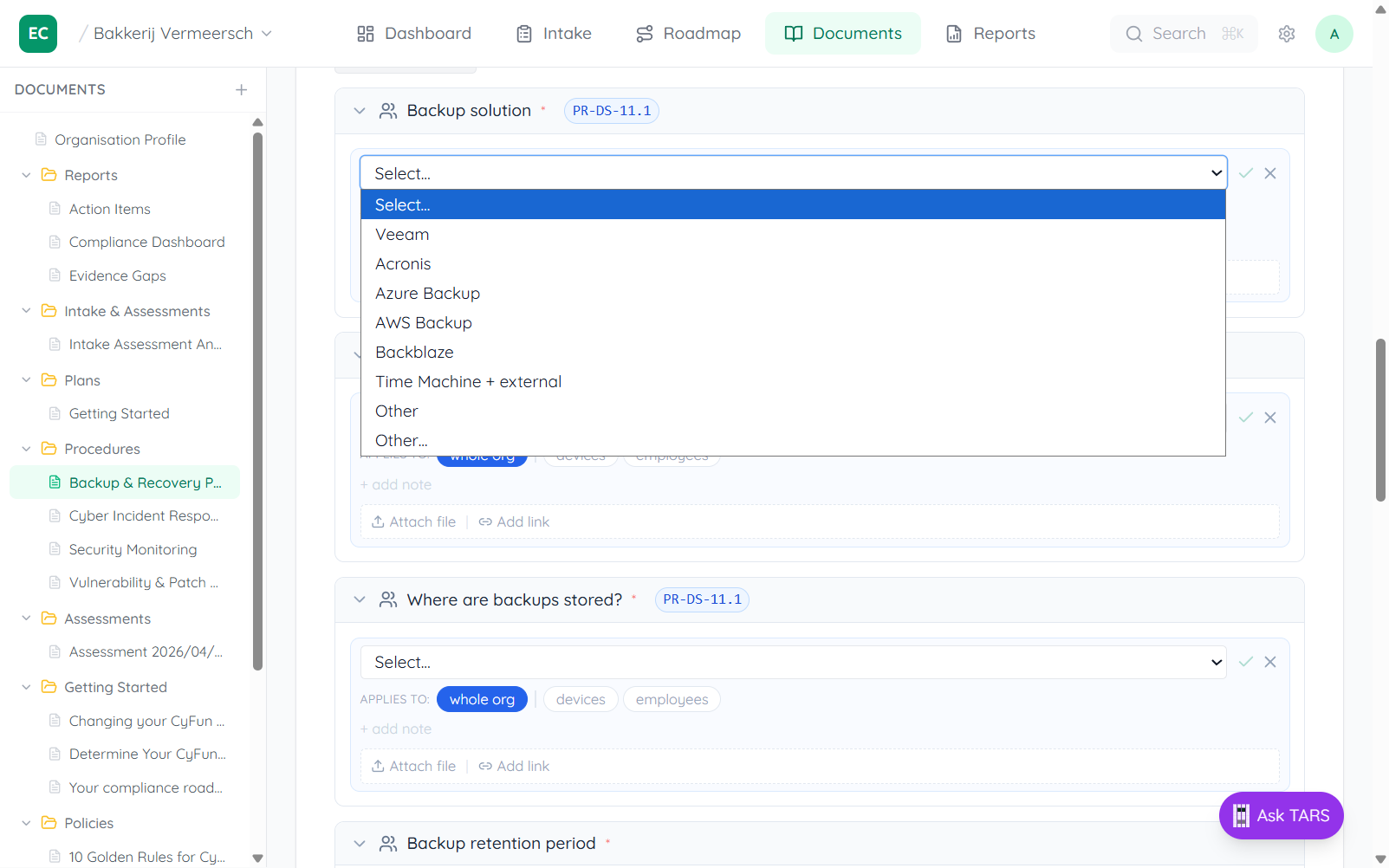
Many fields offer a dropdown with predefined options. Click the dropdown to see all choices — pick the one that matches your organisation's setup.
After saving
Once saved the value appears in read mode with a scope label and an Add another option for scoped overrides per group. The page version increments automatically.
Attaching evidence
Below each field you'll find Attach file and Add link. Use these to attach a screenshot, PDF, or external URL that proves the value is correct — for example, a screenshot of the backup tool settings or a link to your vendor's SLA.
Findings resolve automatically
As soon as the attached evidence matches the control's required artifact type, the finding moves out of Will fail. The Audit punch list percentage recalculates immediately — no manual sign-off step.
The Reports tab shows your overall readiness across all function areas — it updates in real time as evidence is attached and findings resolve.