Registers
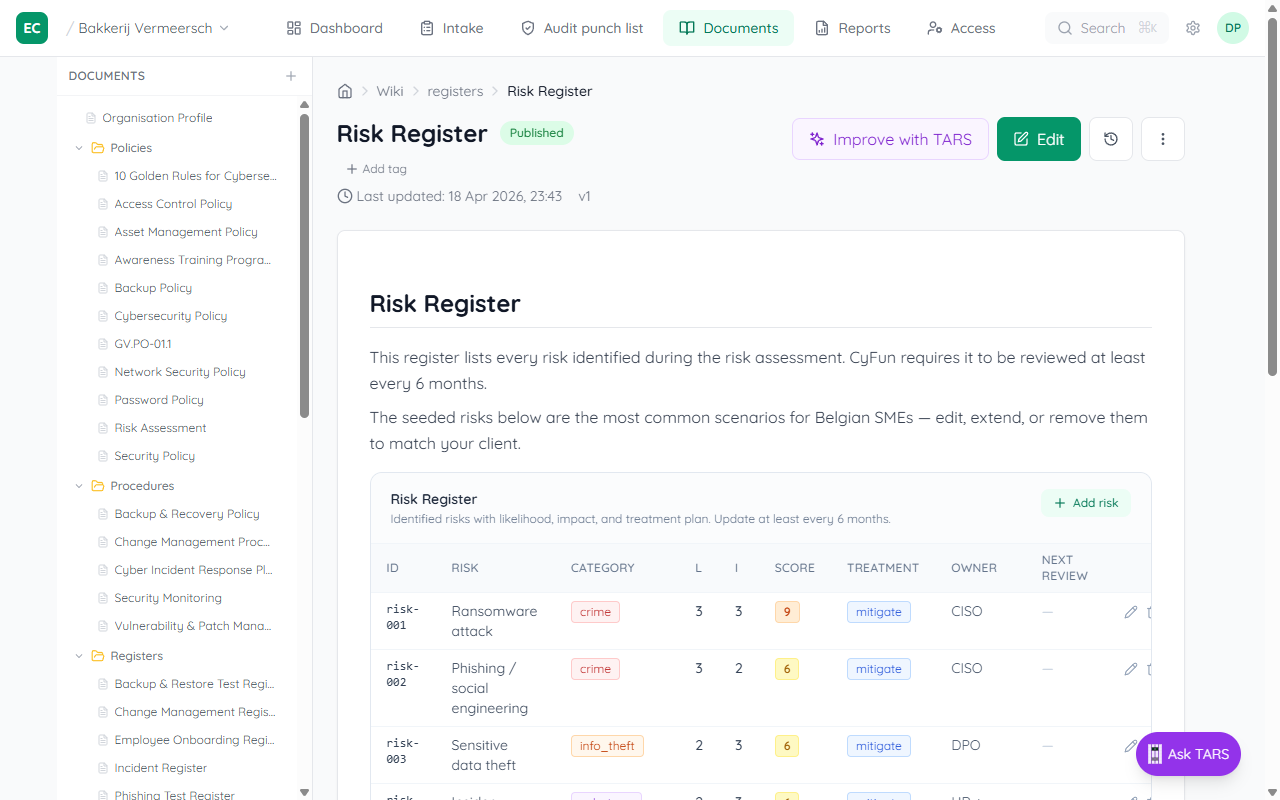
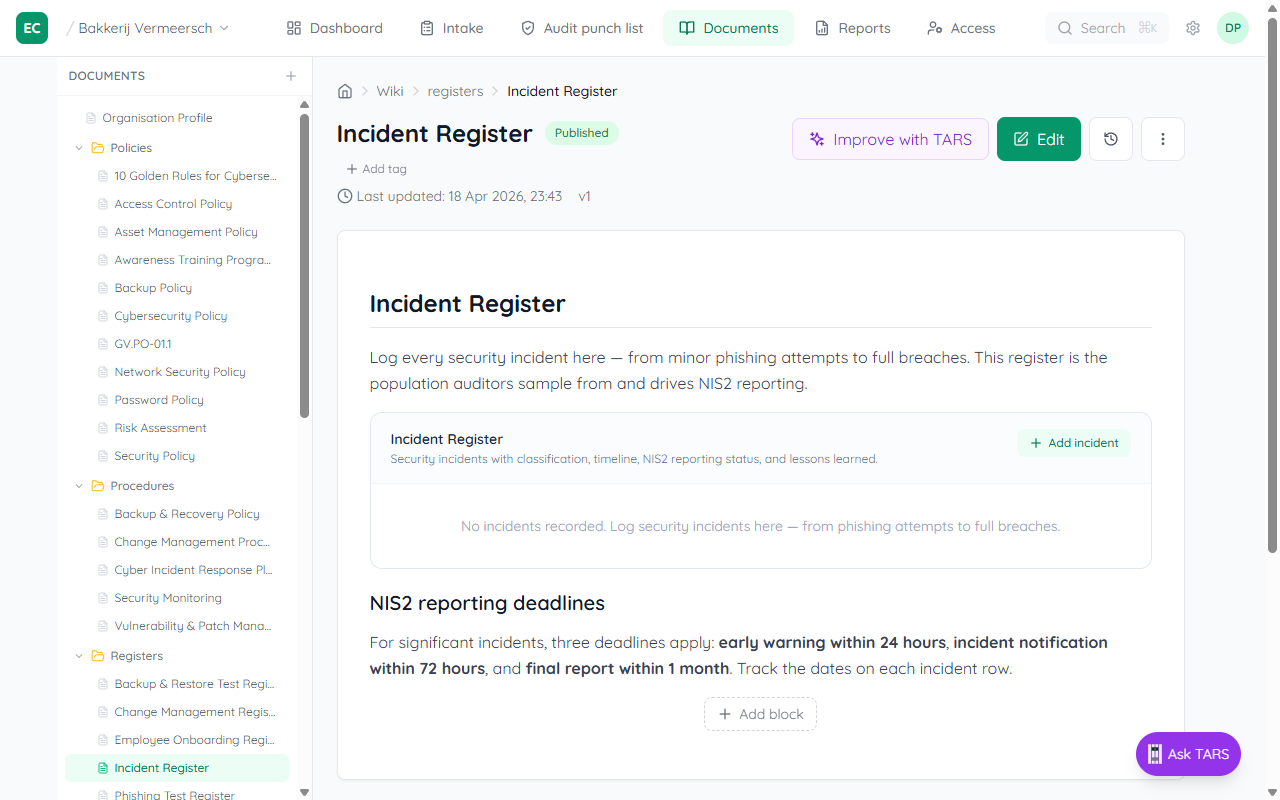
A register is the running log of a compliance activity — risks identified, incidents handled, training delivered. Populated registers are proof to the auditor that the work is actually happening. And every row you add automatically closes part of the Audit punch list.
Why registers exist
CAB auditors don't want to read your policy — they want to see evidence you are doing what the policy says. A written incident-response policy on its own fails the audit; a populated incident register alongside it passes. Registers close that gap.
The eleven registers
Every CyFun client gets these registers provisioned automatically when the framework is applied. Find them in the Documents sidebar under Registers.
| Register | What it tracks | Satisfies |
|---|---|---|
| Risk | Identified risks with impact, likelihood, owner, treatment | ID-RA, GV-RM |
| Vulnerability | CVEs and vulnerabilities found in scans, patched status | ID-RA, DE-CM |
| Supplier | Third parties with access to systems or data, review cadence | GV-SC |
| Incident | Security incidents with NIS2 24h / 72h / 1-month reporting dates | RS-CO, RS-MA, PR-IR |
| Tabletop exercise | IR drills, recovery rehearsals, lessons learned | RS-MA, RC-RP |
| Training | Awareness sessions and completion rates per campaign | PR-AT |
| Phishing test | Simulated phishing campaigns with click-rate / report-rate | PR-AT |
| Backup test | Restore drills — proving backups actually work | PR-DS, RC-RP |
| Change | Significant system changes with risk review | GV-RM (changes trigger risk updates) |
| Policy review | Annual review cadence per policy, with approver and outcome | GV-PO |
| Employee onboarding | One row per new hire: training done, policies signed, MFA provisioned | PR-AT |
How a populated register becomes evidence
You don't have to separately attach a file to prove the work happened. The moment a register has one or more rows, the platform treats it as virtual evidence for every control it is mapped to:
- Add a row to the register (e.g. log one incident in Incident register).
- The wiki indexer reads the row count and links the register to the controls it satisfies.
- The Audit punch list recalculates — the matching findings move out of "Will fail" and into "Ready".
- Your compliance score goes up in real time. No file upload, no manual marking, no approval step.
Quality over quantity
Registers satisfy the audit because they show population. A one-row risk register passes the indexer, but an auditor will still ask "is that really all the risks you have?" — fill them honestly.
MSP-facing reports
Two extra pages live alongside the registers but aren't registers themselves — they are management declarations the MSP delivers to the client:
- Statement of Applicability (
reports/statement-of-applicability) — declares which controls apply, with justifications for any exclusions. Auditors read this first. - Quarterly Business Review (
reports/quarterly-business-review) — the quarterly readout: posture evolution, highlights, open risks, next-quarter commitments. Copy the page into a PDF each quarter.