Documents: Policies, Procedures & Reports
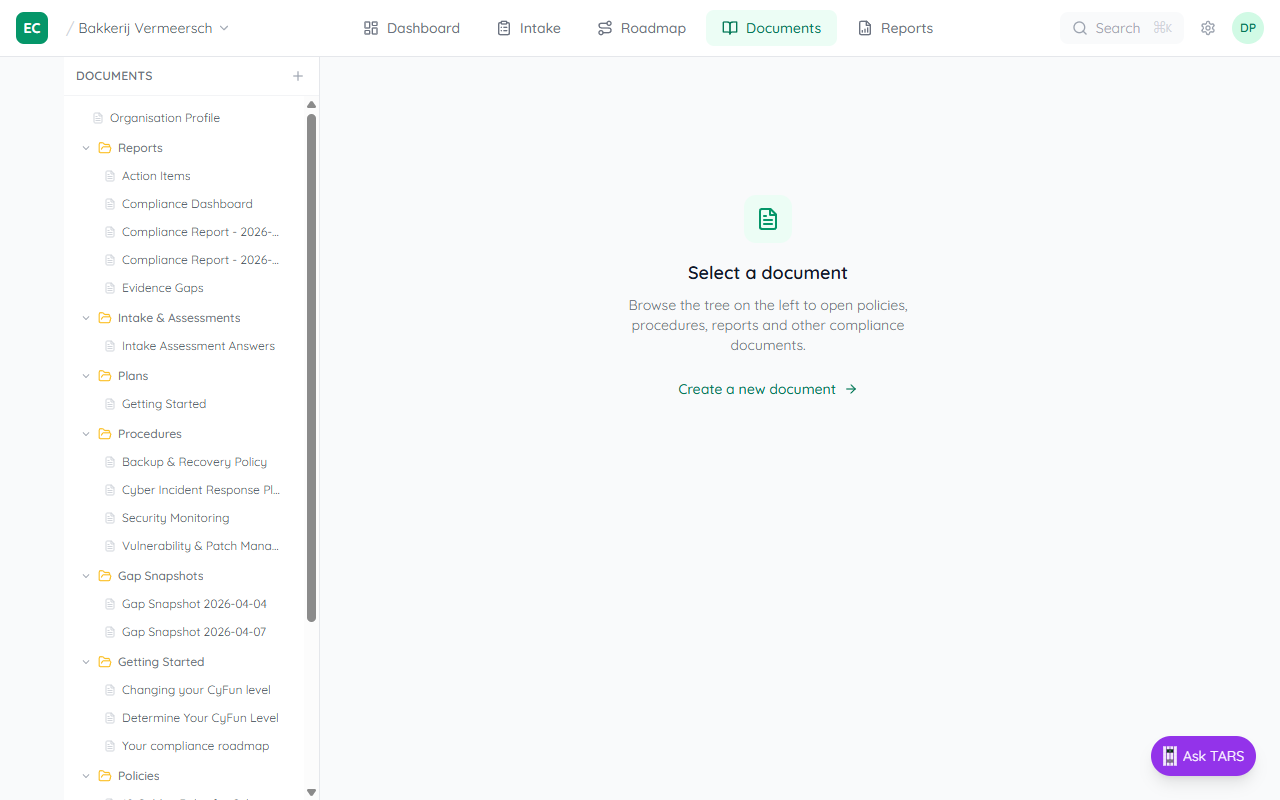
The Documents tab is your built-in compliance wiki. Every policy, procedure, plan, and report lives here — auto-generated from the framework and editable at any time.
What's in the Documents tab
- Controls & Policies — one page per CyFun control, pre-filled with guidance and editable placeholders
- Procedures — step-by-step operational documents
- Plans — incident response, business continuity, and similar planning documents
- Reports — compliance snapshots generated from the Reports tab
- Gap Snapshots — dated gap tables captured from the Audit punch list for audit trail
Navigating the tree
The Documents tab opens in a split-pane layout. The left panel shows a collapsible folder tree. Top-level folders (Controls & Policies, Reports, Procedures, Plans) are open by default. Click any document name to open it in the right pane.
On mobile, the tree is hidden. Use the search (Cmd+K / Ctrl+K) to find documents by name.
Jumping from the Audit punch list
When a finding on the Audit punch list needs evidence, its Upload evidence button takes you straight to the linked control document with the evidence panel pre-selected. Drop your file there — the finding resolves as soon as the evidence matches the required artifact type.
Editing documents
Every document is editable. Open a document and click Edit (top-right of the page header) to switch to edit mode. Documents use Markdown with structured placeholders — fill in the highlighted fields (organisation name, dates, contacts) and the platform tracks which placeholders still need values.
When you're done, click Save to publish the new version. All versions are saved in the page history (accessible from the three-dot More menu).
Creating new documents
Click the + button at the top of the tree panel (or use the New document link on the Documents welcome screen). Give the document a title, choose a slug (the path in the tree), and start writing in Markdown.
Custom documents appear in the tree alongside framework-generated pages. Use the reports/ prefix for audit-related documents or plans/ for planning documents to keep them organised.
Improving documents with TARS
TARS is the built-in AI assistant that can help draft, improve, and complete your documents. Open any document, then use the More options menu (three dots) and click Improve with TARS. TARS reads your current document, the linked controls, and your organisation's context, then suggests improvements — filling placeholders, adding missing sections, or refining existing content.
For control pages, the menu also shows Generate Policy Draft. This generates a complete first draft based on the control requirements, your registered entities, and your assessment answers. The draft is shown as a proposal you can review before applying.
See the full guide: Using TARS (AI Assistant) →
Exporting documents as PDF
Open any document, then use the More options menu (three dots) and click Export PDF. Your browser's print dialog opens — choose Save as PDF. The exported PDF includes the organisation name, page title, and date in the header.
See the full guide: Exporting a compliance report →